¶ Full-Text Screening
After abstract screening, the citations you accepted move to full-text screening — a second, stricter pass where you assess the complete article against your eligibility criteria.
Who can do this: any reviewer assigned to the full-text screening.
¶ What is Different from Abstract Screening
- It comes second. Only citations that passed abstract screening enter full-text screening.
- Exclusion reasons matter more. Full-text exclusion reasons are what populate the
"excluded with reasons" box of your PRISMA diagram, so record them
carefully. - You're reading the whole paper. Configure the screening to require a reason on rejection so
every full-text exclusion is documented.
¶ How It Works
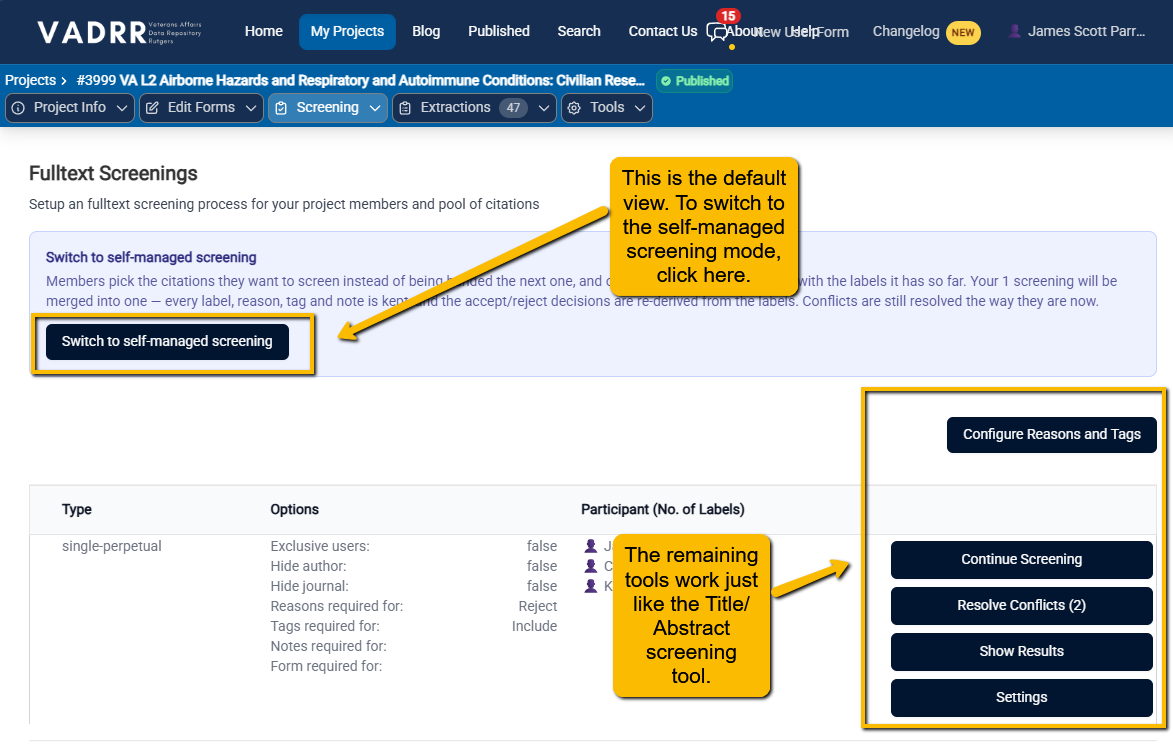
The Full-text screening tool differs a bit from the Title/Abstract tool. For the Full-text tool, there are two modes:
- Default Fulltext Screening (very similar to the Title/Abstract screener)
- Self-managed Screening (allows flexibility for what to screen)
Why the difference? Teams may not have access to the full-text articles all at once and may prefer to screen in full-text citations as PDFs are received. The Self-managed mode allows for this flexibility.
¶ Default Full-text Screenings
This mode is very similar to the Title/Abstract screening.
You begin by configuring Reasons (for exlusion) and Tags, just as you did with Title/Abstract screening. The remaining tools are the same as the Title/Abstract tool (except there is no machine learning engine behind the scenes...full-text screening is completely a human decision.
- Open your project ▸ Fulltext Screenings.
- Start screening: contributors click Screen Next Task on the work-selection page; leaders and
consolidators click Continue Screening from the screenings list / results page. - For each study, record Accept / Maybe / Reject, with reasons, tags, notes, and a screening
form exactly as configured.
¶ Self-Managed Full-text Screening
¶ Settings Tab
When you switch to Self-managed mode, you will be taken to a page with three tabs at the top. The first tab will be the Settings tab. You must first (1) determine how many screeners are needed to make a full-text inclusion/exclusion decision, and (2) determine all settings for Reasons, Tags, etc.
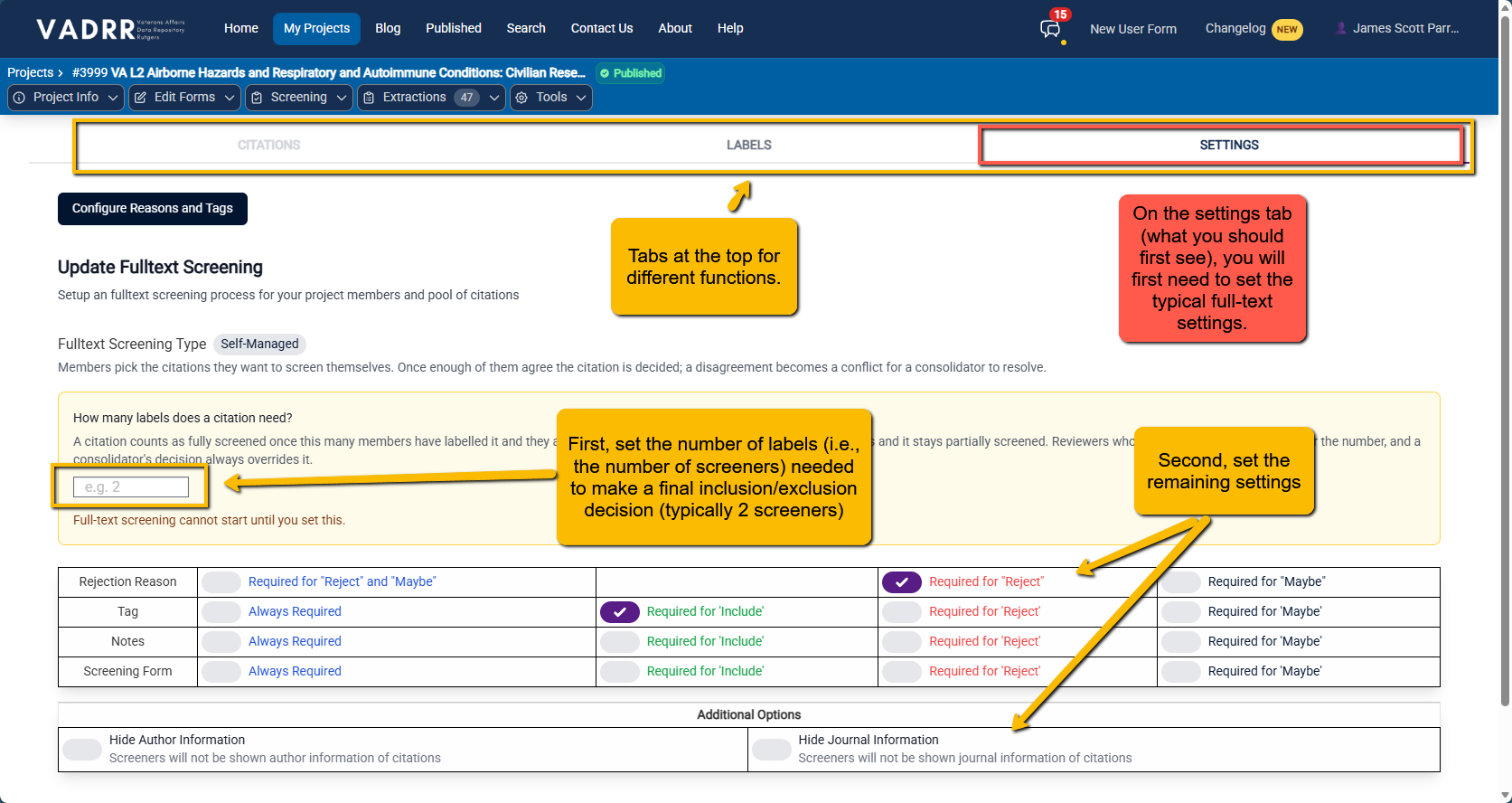
Set up the screening type, blinding, and required reasons/tags/notes/forms the same way as for
abstract screening — see Screening overview and
Configuring reasons & tags (switch the Configure Reasons and Tags
modal to the full-text stage).
¶ Citations Tab
Once you have determined all the settings on the Settings tab, you will notice that the Citations tab is no longer grayed out. Click on the citations tab to see the list of citations that have passed Title/Abstract screening.
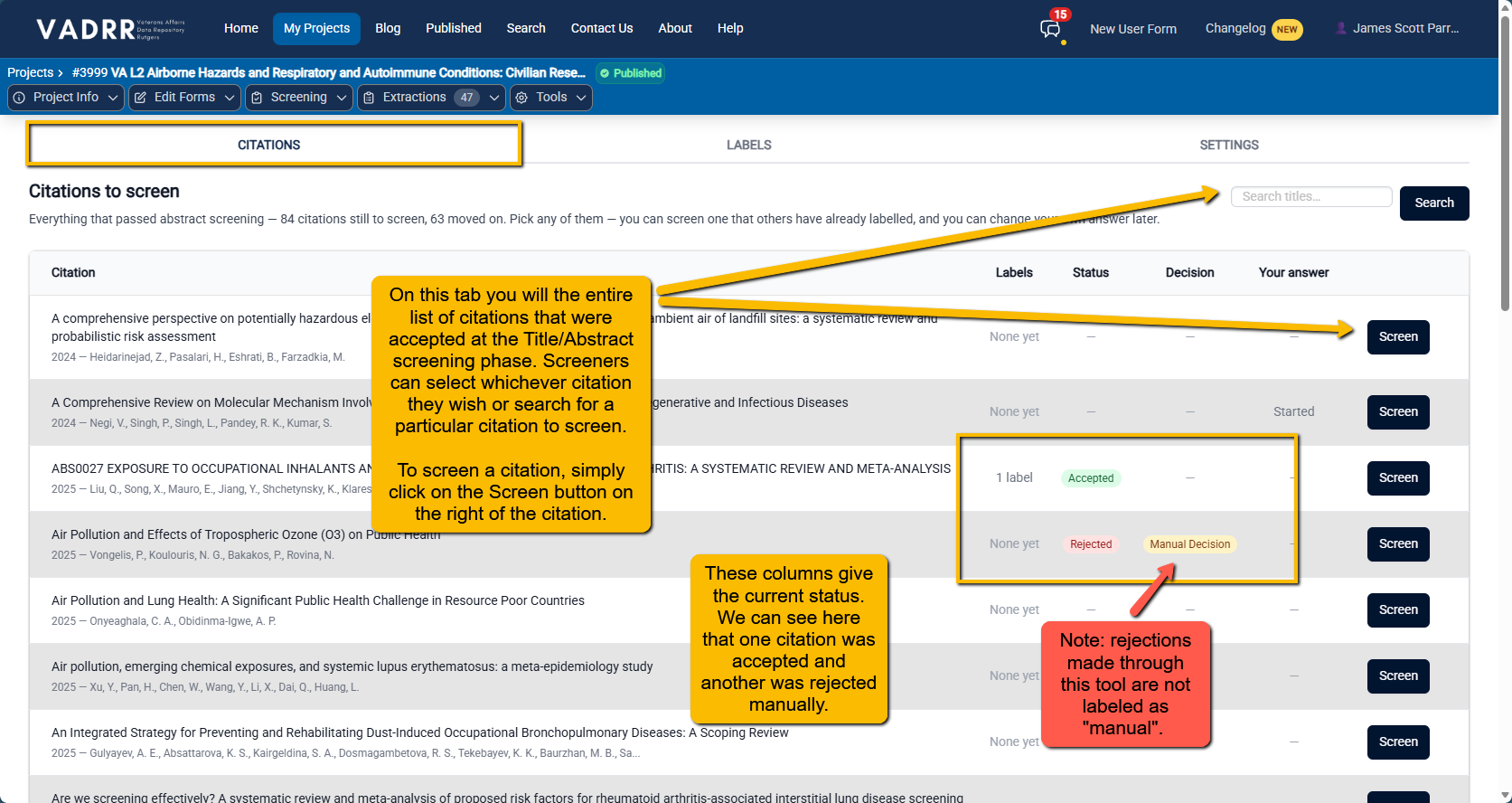
This is the primary page you will use to complete full-text screenings.
As with Title/Abstract title screenings:
- a final label will be applied only after the required number of screeners have made a decision and those decisions agree
- When screeners disagree and the disgreement has been adjudicated by a consolidator
¶ Manual Decisions
Manual decisions occur outside the full-text screening tool (in the Citation Lifecycle Management page). But, you might wonder what "manual" decisions are and when they might be relevant.
When "Manual" Decisions are Relevant: There are a few circumstances where acceptance or rejection of a citation will bypass the typical two-step screening process:
- When there is a duplicate that made it past the deduplication tool (manually reject)
- When a new article is recently published an identified as relevant by a member of the team (and you do not want to wait for it to cycle through the two step screening process (manually accept)
Example
Let's say that a new article was just published from a research group that we have been following who has been doing work relevant to our project. We import in the citation and then want to immediately "promote" the citation to "Needs Extraction" status.
From the Citations Lifecycle Management page, we search up and select the article. When we do this, we have the options to manually promote it within the system. When we click on Full-text Acceptance, a warning will pop up.
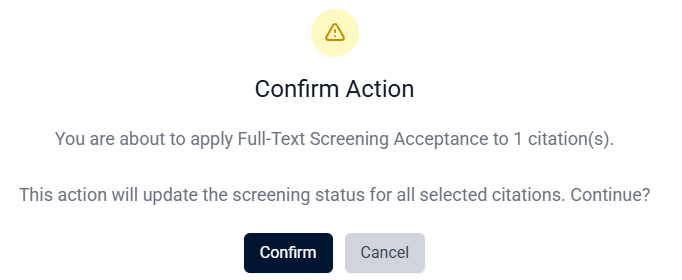
However, when we click on full-text Rejection, we see the following:
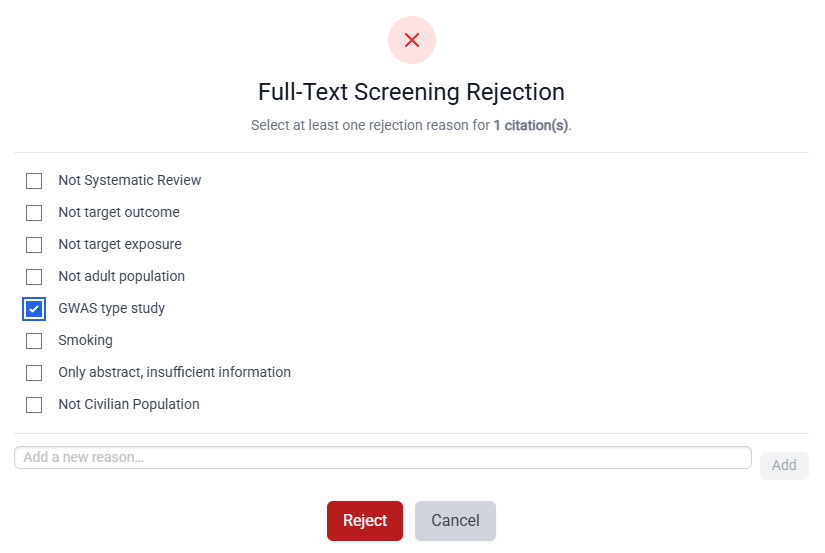
Because reasons for full-text rejection are reqired by PRISMA, you must pick a reason for rejection before you can proceed. Any full-text accept or reject decitions made in this way will appear as "Manual Decision" in the full-text screening Citations tab.
Note that once full-text screened, a citation can be screened again. You just need to click the Screen again button.

¶ Labels Tab
The labels tab will also present a list of citations that have already been full-text screened (the Citations tab presents a list of all citations whether they have been screened or not). You can use this tab to quickly sort on the final decisions (1 = accept, -1 = reject). You can also Screen again on this page.
¶ Next Steps
- Reconcile conflicts if you have not already.
- Build your extraction form and begin
extracting data from the included studies.