¶ PRISMA Flow Diagram
A PRISMA flow diagram shows how records moved through your review — from the number identified, to
those screened, to those excluded and finally included. VADRR builds one from your project's data.
Who can do this: project members; the counts are drawn from your screening data.
¶ Create a Diagram
- Open Prisma (
/prismas). The page lets you "Create and manage reference flow diagrams for
your systematic review projects." - Click Create New Diagram.
- Give it a Diagram Title (required), optional Notes, and select one or more projects (at
least one — a diagram can span several projects). Click Create Diagram.
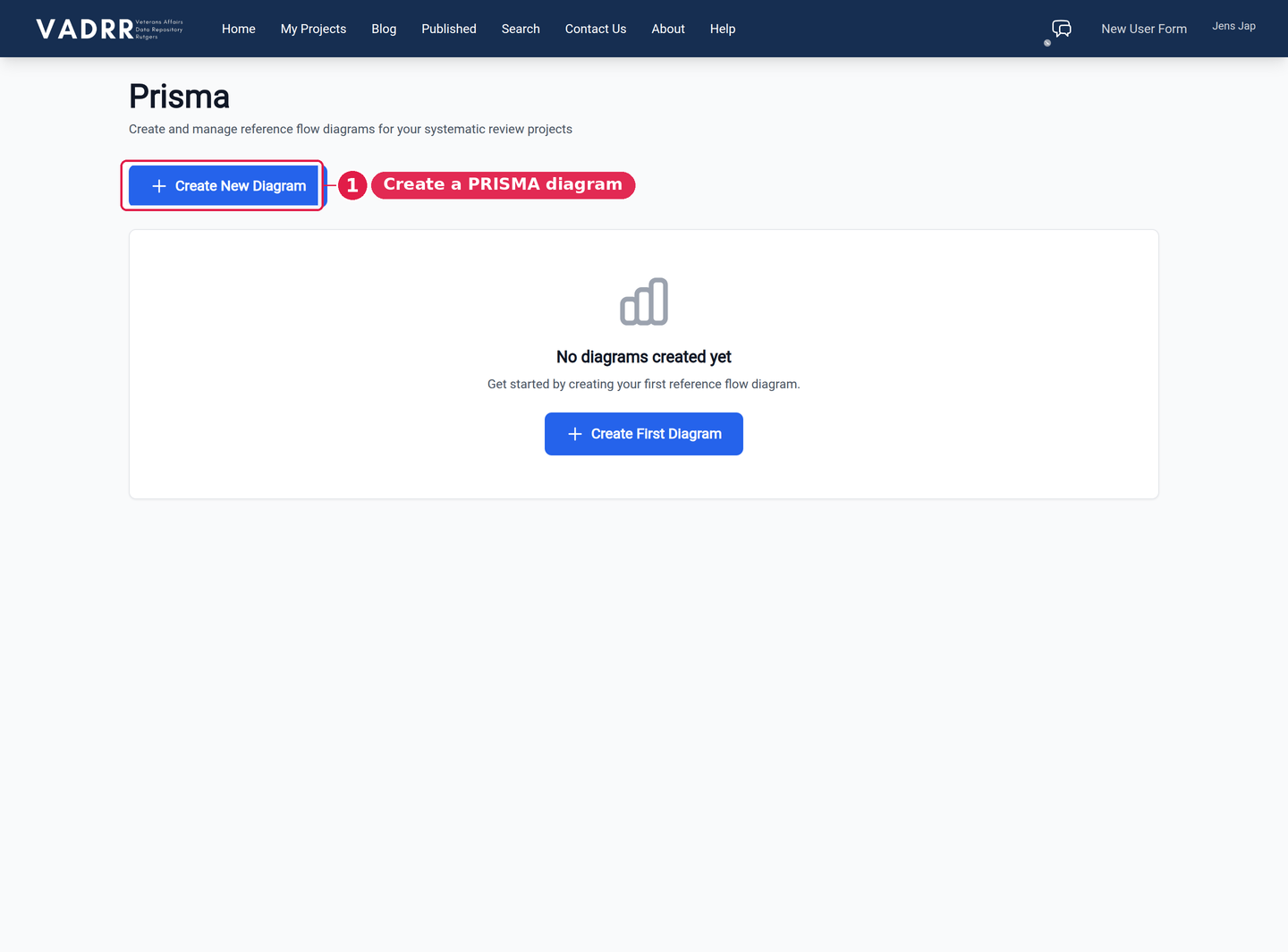
The Prisma page, where you create and manage flow diagrams. Once you create a diagram and link it to
your project, it fills in the counts at each stage.
The diagrams list shows each diagram's Title, the Projects it covers, and when it was
Created / Updated, with View, Edit, and Delete actions. (When you first create a
diagram, VADRR builds its snapshot from your project data in the background, so it may take a moment
before the counts appear.)
¶ What it Shows
The diagram lays out the standard PRISMA stages and fills in the counts from your project, e.g.:
- Records identified through database searching (your imported citations).
- Records screened (title/abstract).
- Records excluded at screening.
- Reports assessed for eligibility (full text) and excluded with reasons.
- Studies included in the review.
¶ Edit, Refresh, and Print
Open a diagram with View to work with it. The view has two sides:
- Current State (marked live) — the counts read straight from your project data right now.
- Editable Snapshot — the values the diagram actually renders. Adjust any count, add or reorder
rejection reasons / included-by-tag rows, and your changes are saved automatically as you
edit. This is where you override the auto-generated numbers (for example, to add records identified
through other sources).
Three buttons sit above the data:
- Refresh Snapshot from Database — pulls the latest Current State counts and overwrites the
snapshot with them. Use this to regenerate the diagram as screening progresses. (It replaces your
manual edits, so re-apply any overrides afterward.) - Edit Projects — opens the edit form to change the Diagram Title, Notes, or project
selection. Changing the projects does not refresh the figures on its own — come back to the
view and click Refresh Snapshot from Database. - Print / Save as PDF — opens your browser's print dialog to save the diagram.
Record full-text exclusion reasons carefully during
full-text screening — they populate the "excluded with reasons"
branch of the diagram.