¶ Building a Data Extraction Form: Instructions and Good Practices
The extraction form defines exactly what data you'll collect from each included study. You design
it once in the Form Builder, and every extraction in the project uses that structure.
Who can do this: only the project Leader can view or edit the Form Builder.
Prerequisite: add at least one key question first — the
Build Extraction Form button stays disabled until you do.
Data entry fields are linked to key questions. So, if you have more than one key question you can have different data entry fields for different key questions.
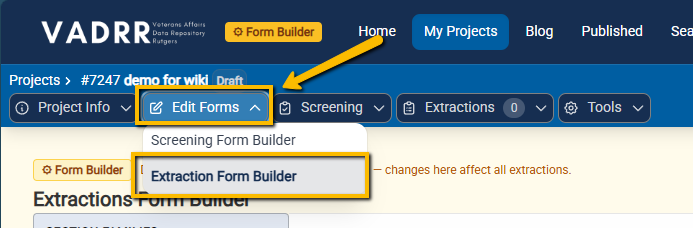
Before extracting data from your screened-in articles, you will need to build a data extraction template. You will find this tool under the Edit Forms pulldown on the top navigation bar. Select the Extraction Form Builder option.
The extraction template is organized into tabs. Each tab has its own form. So, you will need to walk through each tab you have defined for your project. VADRR.org starts you out with a standard set of tabs, but you can customize these or add additional tabs. In the example below the Indexing Fields tab is a custom tab.
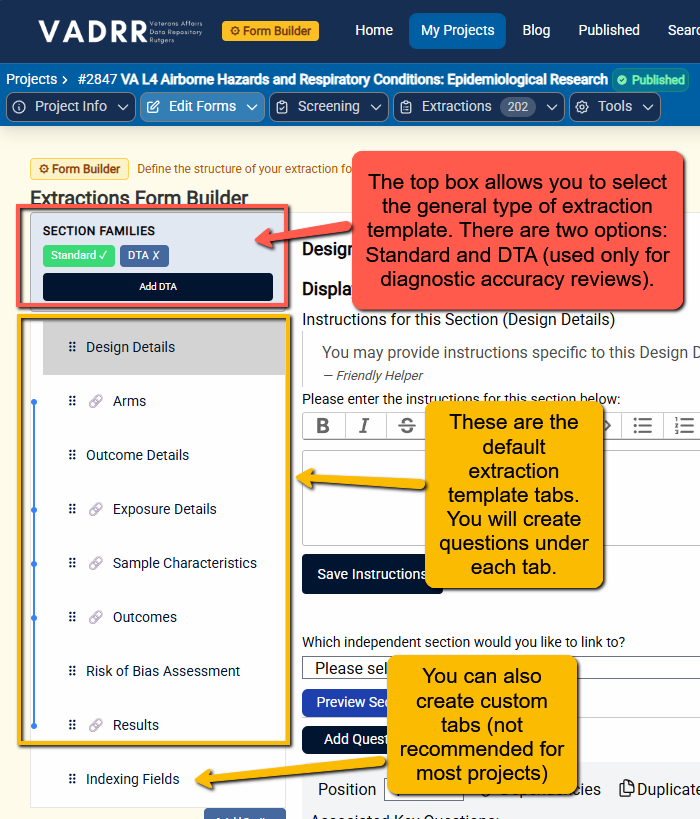
For most types of projects (e.g., treatment questions, etiology or prognosis questions, etc.) you will use the Standard tab structure. For diagnostic accuracy projects, you will use the DTA tab structure. Simply click on whichever tab structure is appropriate for your project.
Note: You can select both Standard and DTA. However, this is NOT recommended for most projects and creates a fairly complicated extraction form.
Before we talk about how to build out the different sections let’s talk first about some more general good practices for building an extraction template.
¶ Good Practices for Extration Template Design
If you are new to creating data extraction templates for systematic reviews, we recommend that you walk through the following good practices for setting up your template. If you are a seasoned evidence synthesis professional, then you can skip to the next section.
Extraction Template Good Practices
Structure your template based on your analytic framework
Organize questions within tabs
Goldilocks principle for data collection
Use dependencies to help your extractors
¶ Structure Your Template Based on Your Analytic Framework
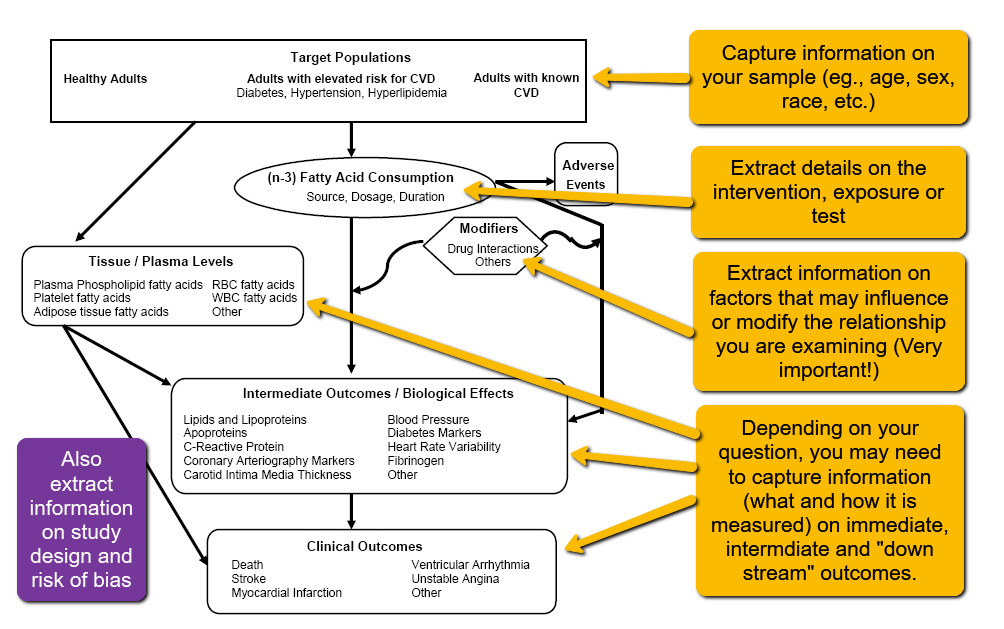
First, the types of information (data) that you’ll want to pull from the research articles should be guided by your PICO question and analytic framework. Take a look back at your PICO or your analytic framework and think carefully about the pieces of information you’ll need to answer your question. For instance, looking at this example analytic framework, we can already see a number of fields we will need to add to our extraction template:
¶ Organize Questions within Tabs
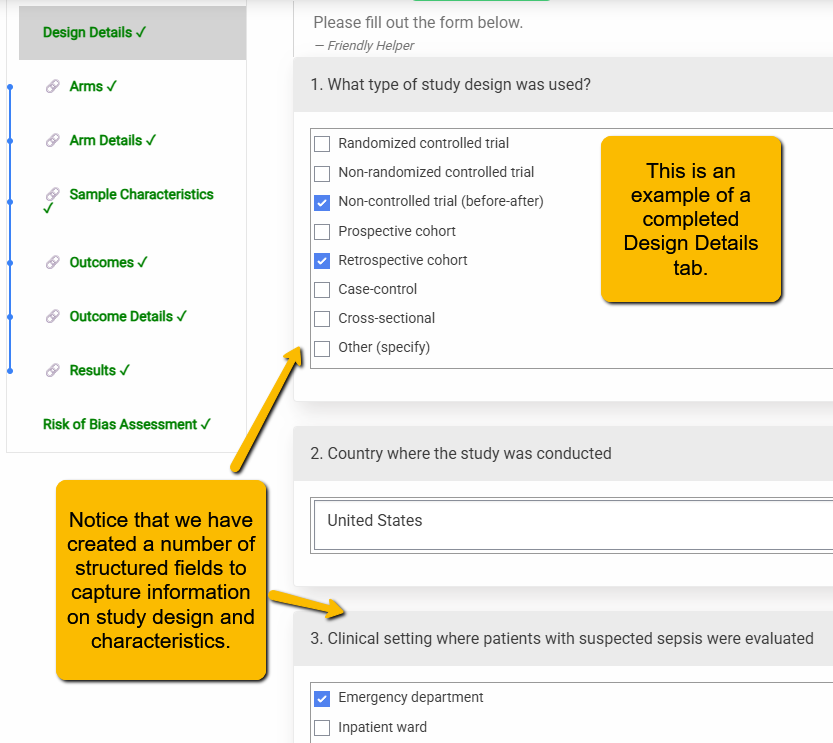
Second, know how to organize your questions within your template. Happily, VADRR makes this easier by organizing different types of information you’ll need into a series of tabs. Below is an example of a structured data entry form for the Design Details tab.
¶ Goldilocks Principle for Data Collection
Third, remember that there is a balance between too little information and too much information. The principle of data extraction for systematic or scoping reviews is that you are extracting only the information you need and in a format that you can use. You don’t want to extract everything (otherwise, you could just work from the full text articles), but you want enough information to allow for your planned analyses.
- Too little information extracted will mean either a very limited analysis or may mean going back later to update your template to capture information you missed.
- Too much information, and you will find yourself wasting time extracting information that you will not need for your analysis.
For instance, it is very important to plan ahead of time for sub-analyses if you will be carrying out a meta-analysis. So, you’ll need to extract information about differences between the samples, interventions, measurement methods, etc. used in the different research articles. Taking these study characteristics into account can provide strong evidence for why interventions or exposures or tests work differently (i.e., have different outcomes) in different situations. But you have to plan ahead for capturing this information (without trying to extract every piece of information from a study).
¶ Use Dependencies to Help Your Extractors
Fourth, you can use the Dependencies functionality to help guide the data extractors (and yourself) in knowing which questions to answer, and which they can safely ignore.
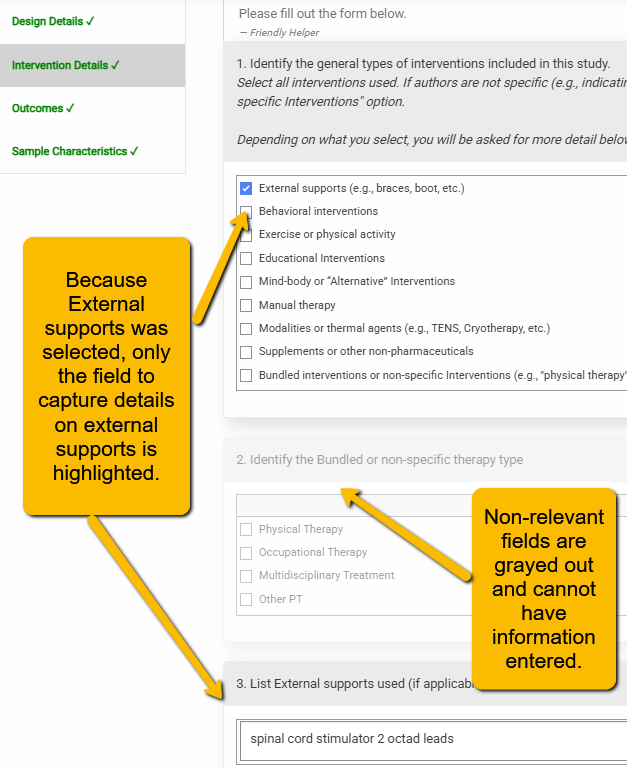
Let’s look at a simple example. You will notice below that there are two questions that I’ve set up to capture detail on different types of interventions. The first question lists different types of physical therapy interventions. Subsequent questions capture more detail on these general types of therapy. However, only the relevant later questions will highlight. Questions that are not relevant will be grayed out.
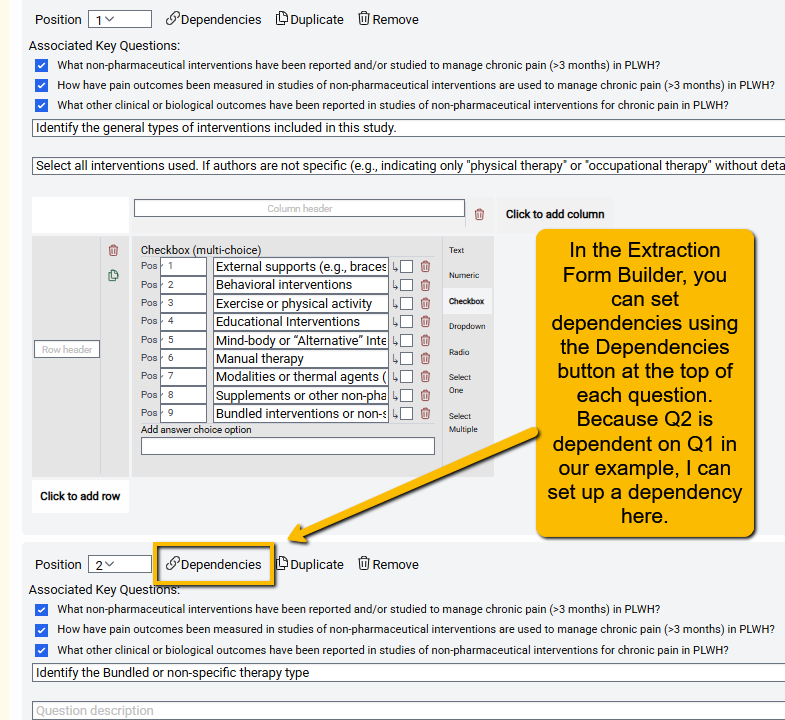
How do you set up a dependency between questions? You will find the tool to define dependencies in the Extraction Template builder. The Dependencies button is at the top for each question.
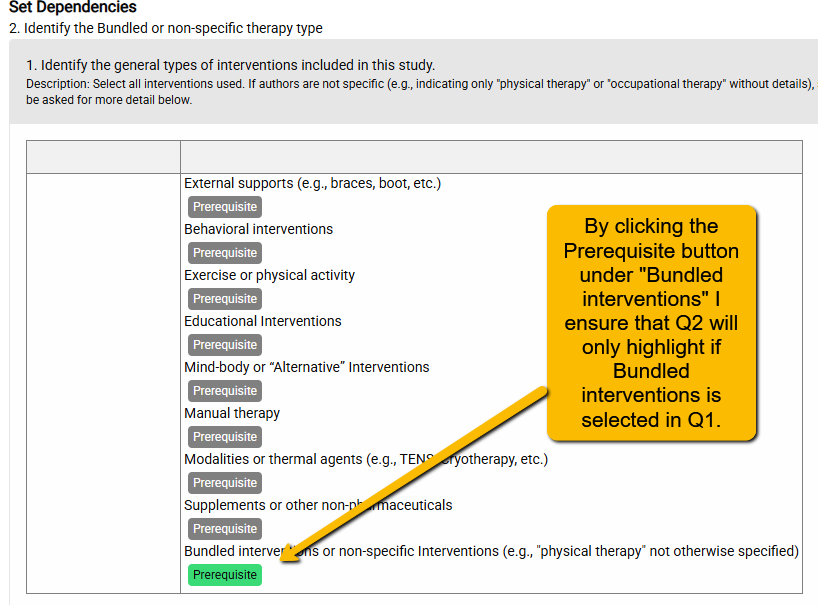
When you click on the Dependencies link, you’ll see:
¶ Getting Started with the Extraction Template Builder
When you first open the Extraction Form Builder, you will be taken to the page to structure the Design Details tab first. You will see the following:
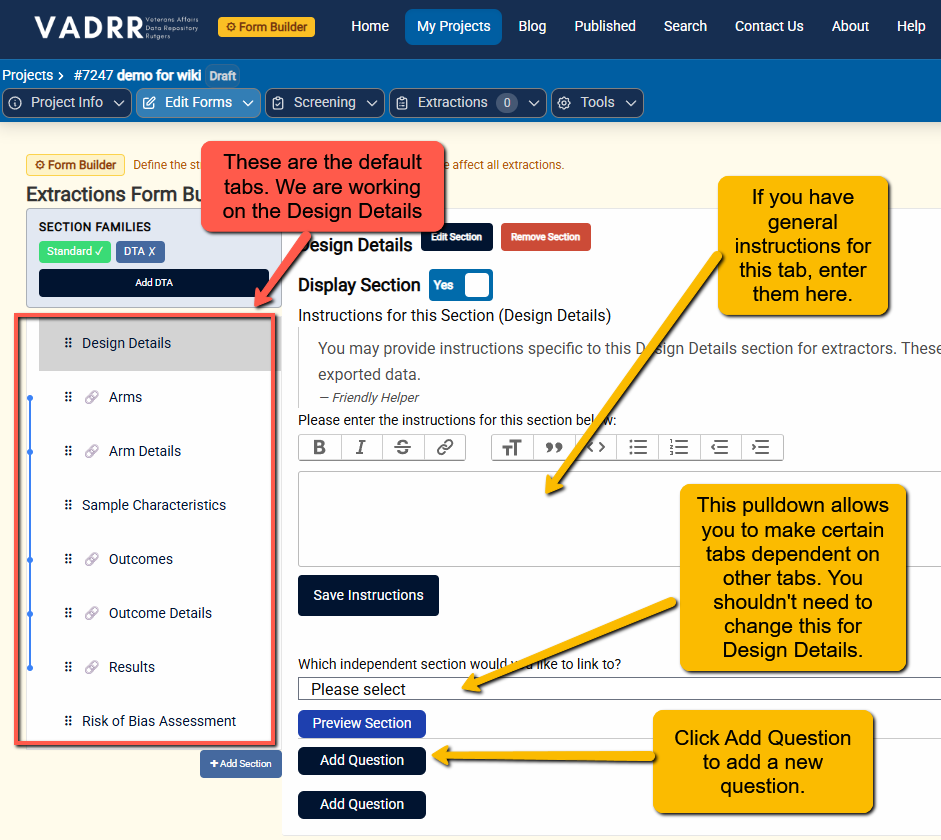
There are several components to take note of:
- List of Available Tabs: On the left you will see a list of the default tabs defined by VADRR.
- Add Section Button: Below this list is a button: Add Section. While most projects will not require any additional tabs, you have the flexibility to add additional tabs.
- Save Instructions: If you have general instructions for extractors for the particular tab, you can enter those instructions in this text box.
- Tab Dependencies: There are two key tabs that structure other tabs: Arms and Outcomes. If you make Arm Details dependent on Arms, then each question in Arm Details will repeat for each arm defined in the Arms tab. Similarly, if the Outcome Details tab is dependent on the Outcomes tab, then each question on the Outcome Details tab will repeat for every outcome defined on the Outcomes tab. Finally, if you are going to carry out risk of bias for each outcome (rather than the article as a whole), you will want to make the Risk of Bias tab dependent on Outcomes.
- Preview Section: You can use this button top preview the look of your questions.
- Add Question: This button allows you to add a new question.
¶ Next Step
The next series of pages will show you how to actually set up different types of questions in VADRR.