¶ Project Settings & Key Questions
Open a project and choose Project Info to edit its metadata, or Key Questions to define the
research questions that drive extraction. Both live under the project's edit area.
Who can do this: only the project Leader can edit these. Everyone else sees the same
screens in read-only mode.
¶ Edit Project Information
On the Project Info screen (/projects/<id>/edit?page=info) you can set:
| Field | Purpose |
|---|---|
| Name | Project title (required, can't be blank). |
| Topic Description | Summary of the review. |
| Attribution | Acknowledgements / attribution text. |
| Authors of Report | The report's authors. |
| Methodology Description | Choose Systematic Review, Technical Brief, Rapid Review, Evidence Map, or type your own value. |
| PROSPERO Registration ID | Your PROSPERO registration number. |
| Document Object ID (DOI) | Digital Object Identifier for the review. |
| Notes | Internal notes. |
| Funding Source | Who funded the review. |
| Mesh Terms | MeSH descriptors associated with the project. |
| Exclude Personal Conflicts When Screening Conflict Resolutions | When ticked, a reviewer won't be asked to resolve conflicts that involve their own decisions. |
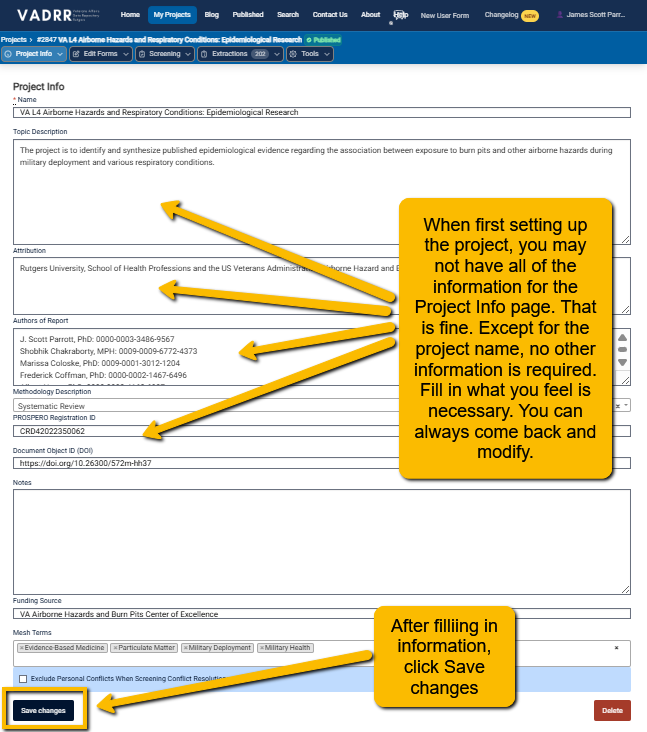
The Project Info form. Only a Leader sees the editable version and the Save/Delete buttons.
Click Save changes to apply edits.
¶ Deleting a Project
At the bottom of Project Info, a Leader can click Delete. This is irreversible — it permanently
removes all extractions, citations, forms, and results — so VADRR requires you to type
CONFIRM in the confirmation dialog before it proceeds.
¶ Define Key Questions
Key questions are the questions your review is designed to answer. Open Key Questions
(/projects/<id>/edit?page=key_questions).
- Under Create Key Question, enter the question text and save.
- Each key question appears in the table with its Extraction Usage (whether it's wired into the
extraction form yet), and the created/updated dates. - A Leader can reorder key questions by dragging the ⠿ handle, edit them, or remove them
(removal asks you to typeCONFIRM).
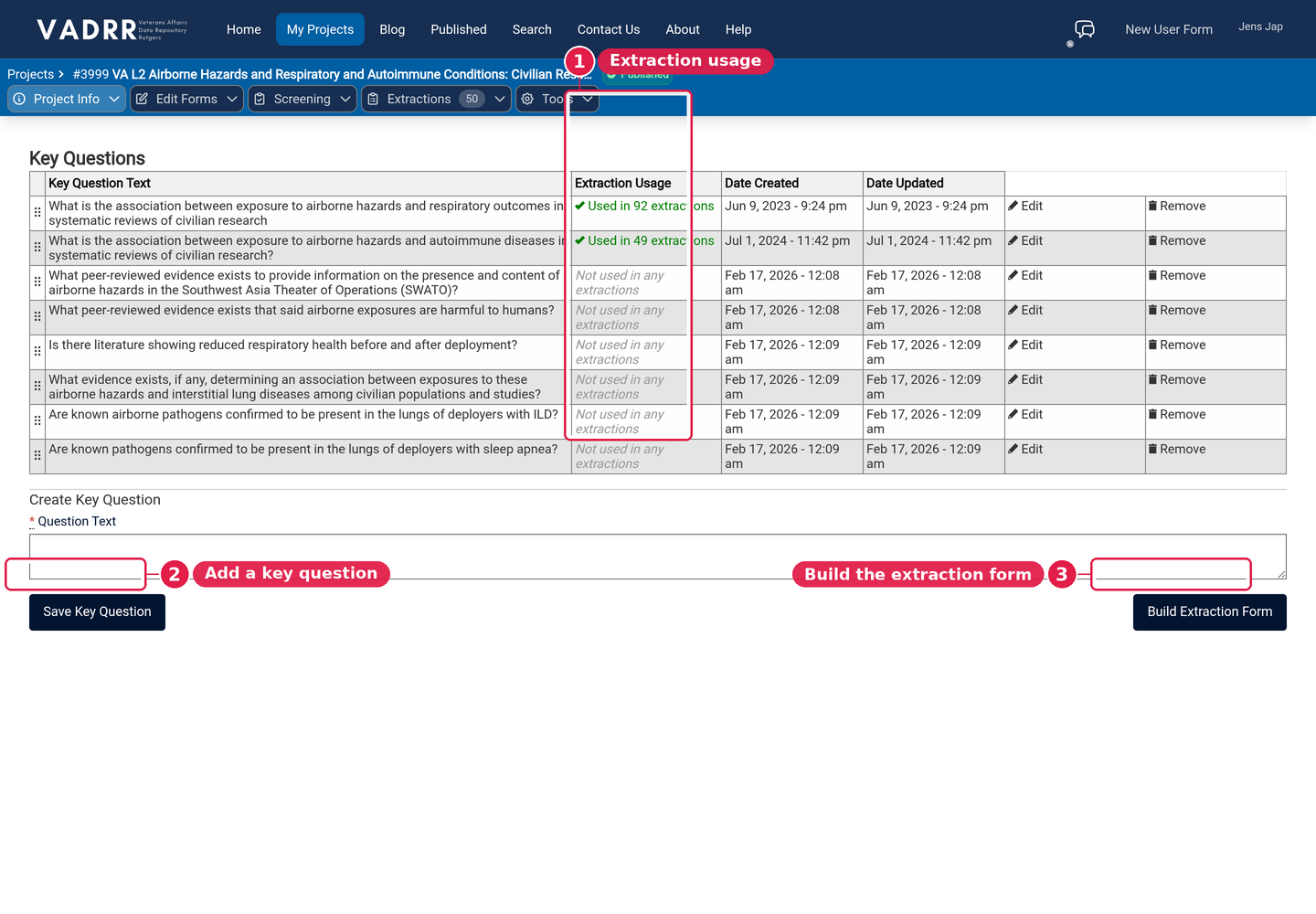
Key questions list with the create form below it.
Important: you must add at least one key question before you can build your extraction
form. Until then, the Build Extraction Form button stays disabled. Once you've added one, use
that button (or the form builder) to continue.